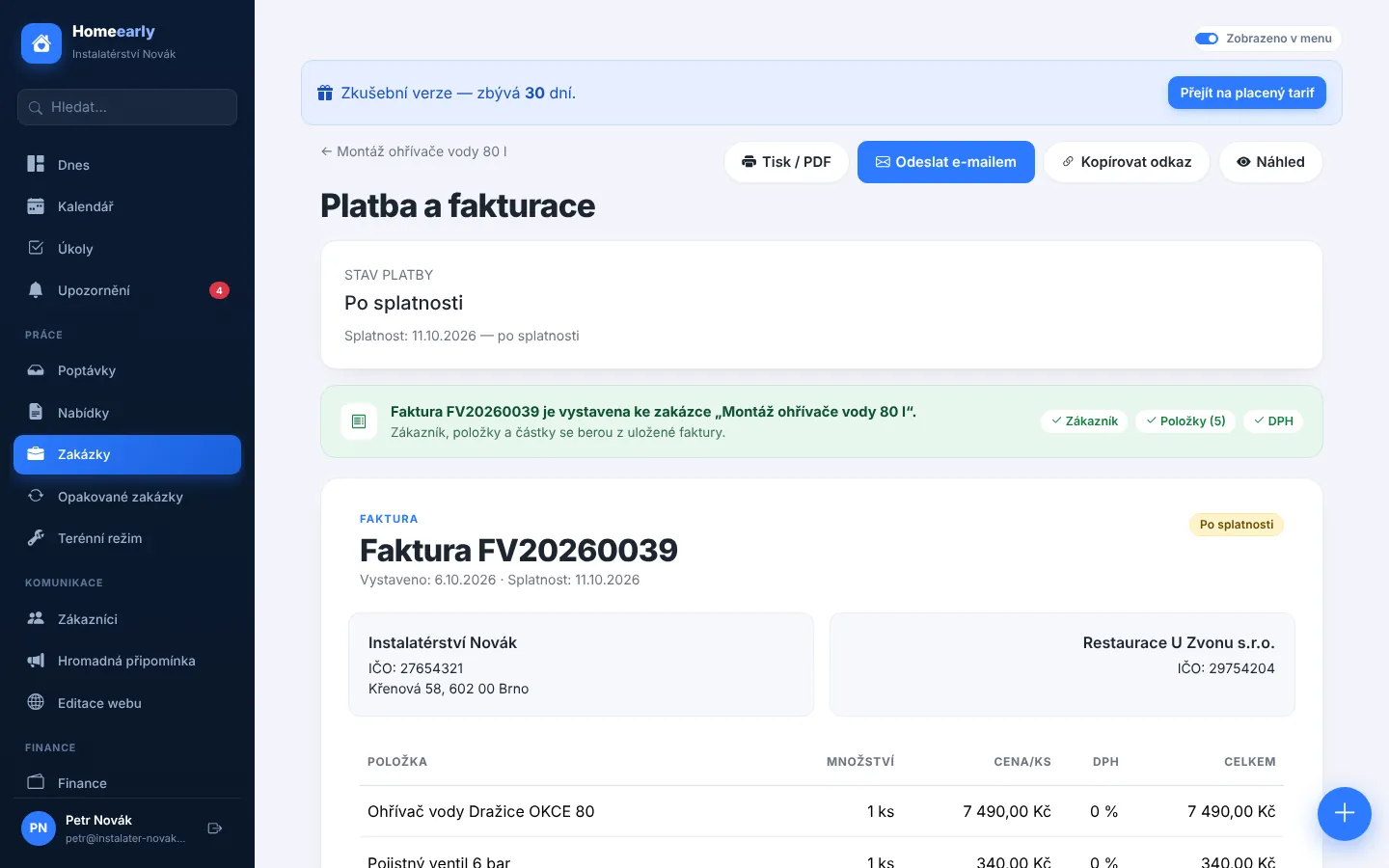
You order tens of thousands' worth of materials and then the customer changes their mind. Or the other way round: the job is done, the customer complains about part of the work and you need to refund them. Both are easy to get wrong in a notebook or a spreadsheet. The deposit is not deducted, or the refund never shows up in your revenue figures.
Proforma invoice: money before you order materials
For a job that does not have a final invoice yet, issue a proforma invoice under Payment and invoicing. It has its own number series (ZF-year-0001) and a QR payment, so the customer can pay from their phone in seconds. You can issue more than one, say one before ordering materials and another halfway through.
- Once paid, the deposit is recorded as a payment received for the job.
- When you issue the final invoice it is deducted automatically, so the customer pays only the balance. If the deposit covers everything, the invoice is marked paid straight away.
- Unpaid proformas are cancelled automatically once the final invoice is issued.
Note: a proforma invoice is not a tax document. VAT payers must issue a tax document for the payment received, which for now is done outside Homeearly.
Credit note: a correction without rewriting the invoice
An issued invoice should not be rewritten. When you refund money or reduce the price, issue a credit note: for the whole invoice or only selected items and quantities, always with a reason.
- Credit notes have their own number (DB-year-0001), a printable view, email sending and a link for the customer.
- They reduce the amount due, so QR payment, card payment and bank payment matching all use the correct figure.
- The job's revenue is reduced and credit notes are included in accounting exports (ISDOC, Pohoda).
What if it is just a typo?
Fix a small mistake, such as a wrong quantity or item name, right in the invoice preview with Edit invoice. Every change is logged in the invoice history (who, when, amount before and after). Once an invoice has a payment, deposit or credit note, only the texts can be changed and amounts are corrected with a credit note. Non-VAT payers can also cancel the invoice and issue a new one.
More on invoicing on the Quotes, invoices and payments page.
Try Homeearly for free
Signing up takes a minute: 30 days free with every feature, no credit card and no commitment.